
Notepad
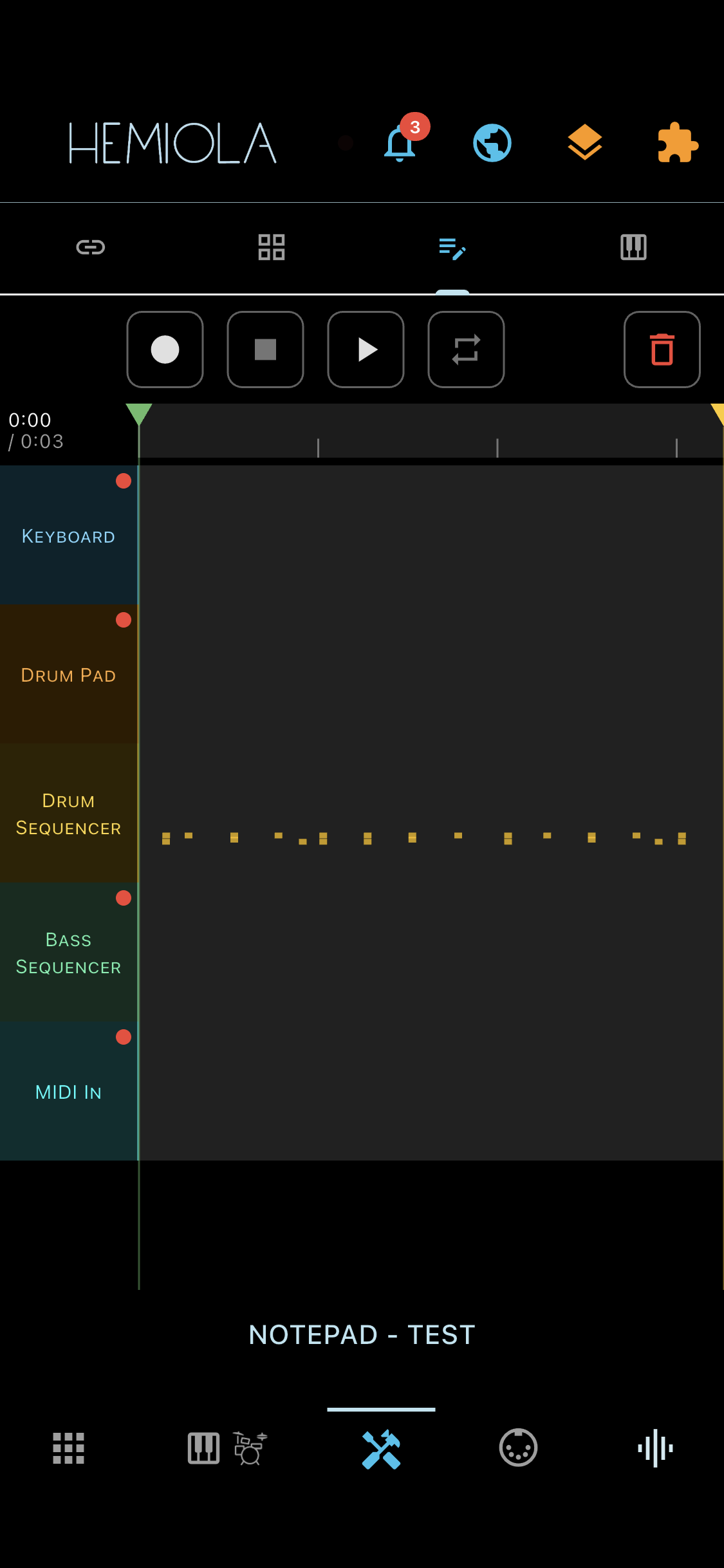
The Notepad is a multi-source MIDI recorder. It captures note events from every active source simultaneously — Piano Keyboard, Drum Pad, Step Sequencer (drums and bass), and external MIDI In — each on its own track, together with a full snapshot of all synth, effects, and SoundFont parameters at the moment of recording.
To open the Notepad, tap the Tools tab in the bottom bar, then select the Notepad sub-tab.
Transport
- Record — tap to start a new recording. All currently armed sources are captured from that moment. If a recording is already loaded, the new performance is merged into it as an overdub.
- Stop — ends the current recording or playback and returns to idle.
- Play / Pause — starts playback of the loaded recording from the current position. Tap again to pause; tap Stop to return to the beginning.
Tracks
The track panel shows one row per MIDI source: Piano Keyboard, Drum Pad, Sequencer Drums, Sequencer Bass, and MIDI In. Each row displays the armed state and, after recording, a waveform-style event density bar.
- Track settings — tap the track label to reveal a slide-out panel with per-track controls: Delete (erase all events on that track), Mute (silence during playback), Solo (hear only that track), Arm (include in next recording), and a Volume slider. Tap anywhere on the piano-roll canvas to close the panel.
- Arming — use the arm button in the track panel to include (or exclude) that source from the next recording. All empty tracks are armed by default. Disarmed tracks are still audible during playback.
- Overdub — record again over an existing recording. Only the armed tracks are replaced; events on disarmed tracks are preserved. A confirmation dialog appears if the armed tracks already contain data.
- Solo — tap the solo icon on a track during playback to hear only that source. Tap again to exit solo.
Timeline & Markers
The timeline ruler shows the full duration of the loaded recording. Two markers (start and end) define a region for loop playback and overdub targeting.
- Drag the start marker (left triangle) or end marker (right triangle) to set the loop region. On touch screens, a generous hit area makes dragging easy.
- Loop toggle — when loop mode is on, playback repeats continuously within the marked region. Recording in loop mode overdubs only the marked window on each pass.
Notes List
Tap the preset icon in the app bar to open the Notes list, which shows all saved recordings.
- Save — tap the preset icon in the app bar to open the Notes list. When a new unsaved recording is present, the dialog shows an "Add new" button: tap it to name and permanently store the recording. Free users can save up to 3 recordings; Pro users are unlimited.
- Load — tap a recording in the list to load it into the editor. Any unsaved changes prompt a confirmation.
- Rename — tap the edit (pencil) icon on a recording tile to rename it.
- Delete — tap the delete (trash) icon on a recording tile. A confirmation dialog prevents accidental deletion.
Export
- Tap the export icon on a note tile to open the Export dialog. Choose MIDI File or Audio File.
- MIDI File — exports a Standard MIDI File with one track per recorded source, preserving channels, velocities, and the current BPM. On desktop a Save dialog opens; on mobile the system share sheet appears.
- Audio File — Mixed: renders all non-muted tracks together as a single stereo 44.1 kHz WAV. Separate Tracks (ZIP): renders each track individually and bundles the WAV files into a ZIP archive. The separate-tracks option is available only when at least two tracks contain events.
Audio export renders silently in the background using the current Sound generator patch. A progress indicator is shown while rendering.
Community Library
A recording can be published to the Community Library so other users can browse, preview, and import it.
- Tap the publish icon (globe) on a recording tile to open the Publish dialog. The notepad section is pre-selected; you can include or exclude other sections (Sound, Device, Sequence, Harmonizer) in the same preset.
- In the Community Library, use the Notes filter chip to browse published notepad presets. Applying a preset loads the recording as a pending note; importing saves it directly to your Notes list.
Keyboard Shortcuts (Desktop)
| Key | Action |
|---|---|
| Space | Play / Pause |
| R | Toggle Record |
Shortcuts are active only when the Notepad tab is open and no text field has focus. Combinations with Shift are passed through to the Step Sequencer.