
Step Sequencer
Note
To open the Step Sequencer, tap the Tools tab in the bottom bar, then select the Step Sequencer sub-tab.
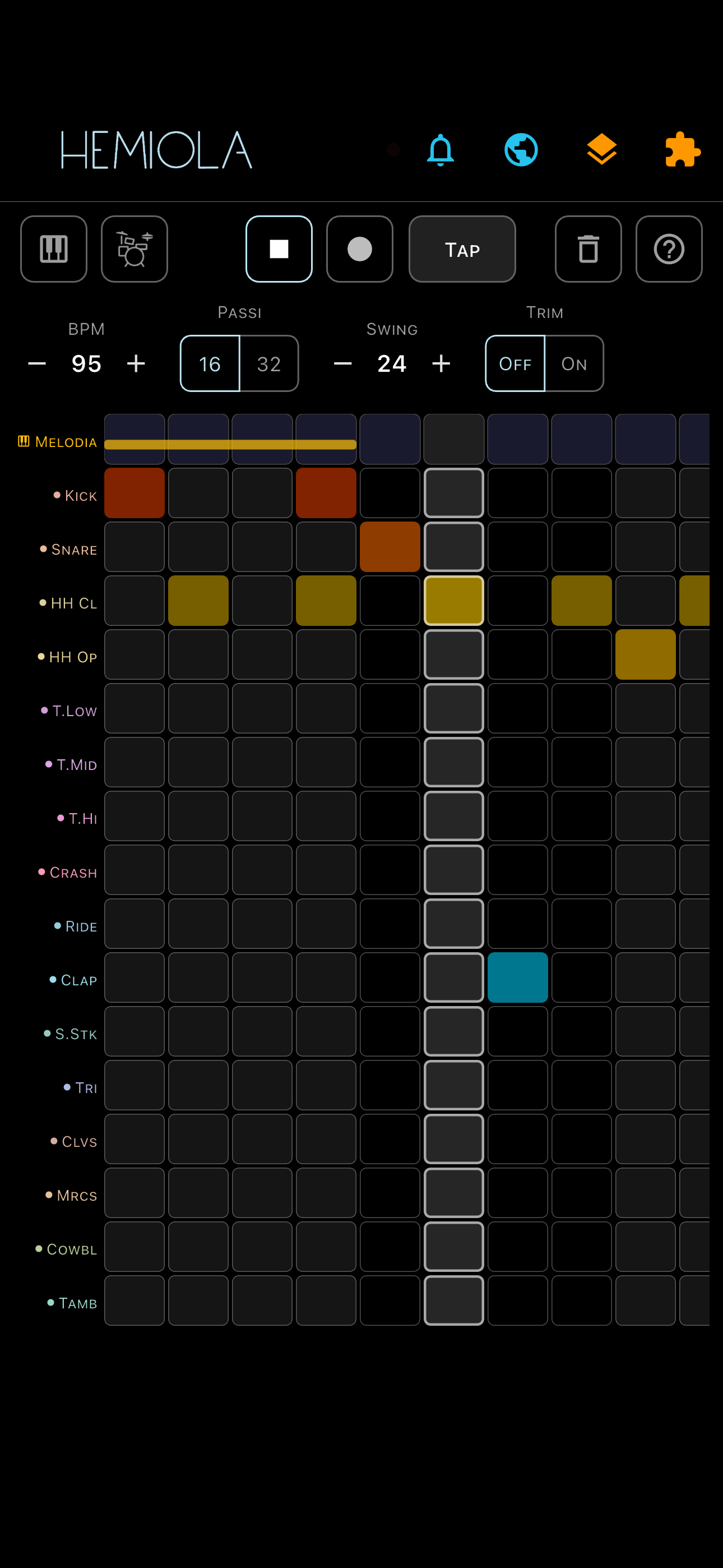
The Step Sequencer has 16 drum tracks and a Melody / Bass track. It programs up to 32 steps of GM percussion plus a monophonic melodic line. It runs in the background: switching to other tabs does not interrupt playback.
Note
A SoundFont file must be loaded and active. The selected SoundFont must be GM-compatible — it needs a standard GM Percussion bank on channel 10.
Transport
- Play / Stop: tap the play button to start playback from step 1. Tap again to stop. The active playhead column is highlighted.
- Record: tap the Record button to enter recording mode. A dialog asks whether to record Drums or Melody / Bass. Playback starts automatically if stopped. In Drums mode, note-ons matching a drum row are written to the nearest step; a click track (Claves) sounds every quarter note — louder on beat 1. In Melody / Bass mode, notes played on the keyboard or via external MIDI are recorded as pitched events with velocity and duration. Tap Stop to exit recording.
- Tap Tempo: tap repeatedly at the desired tempo to set BPM automatically. Hemiola averages the last few intervals to compute BPM. Taps older than 4 seconds are discarded.
Grid
- The top row (amber) is the Melody / Bass track. Below it are the 16 drum rows, each corresponding to a GM percussion instrument.
- Tap any drum cell to toggle a step on or off. Long-press a drum cell to toggle it as a silent step (greyed out): silent steps hold the loop position without producing sound.
- Row labels: tap a label to mute or unmute that entire row (content is preserved, the row turns grey). Long-press a label to delete all steps in that row immediately, with no confirmation.
Melody / Bass Track
- The melody row displays recorded notes as horizontal bars: vertical position reflects pitch, bar width reflects duration (steps), bar height reflects velocity.
- Recording is monophonic: a new note overwrites any existing note at the same position and truncates any overlapping predecessor.
- Long-press the Melody label to clear the melody track instantly, or use Clear Pattern with the Melody / Bass checkbox.
Parameters
- BPM (40–240): set the tempo with the +/− spinner. Changes take effect immediately.
- Steps (16 / 32): toggle between 16 and 32 steps. Switching to 32 pads existing steps; switching back to 16 truncates the last 16.
- Swing (0–100, step 5): amount of swing on odd steps. 0 = straight; higher values produce a shuffle feel.
- Trim: when enabled, the loop ends at the last active step rather than always running to step 16 or 32. Useful for shorter patterns.
Pattern Presets
- Tap the Pattern chip to open the preset list. Factory patterns cover a variety of styles; you can save your own.
- Clear Pattern: tap the trash icon to open a dialog with separate checkboxes for Drum Tracks and Melody / Bass. Only the selected tracks are cleared.
Export
- Tap the Export… button to open the export dialog. Choose MIDI File to save the pattern as a Standard MIDI File, or Audio File to render it as a 44.1 kHz stereo WAV.
- Audio export: choose the number of loops (1, 2, 4, or 8), then tap Audio File. A progress indicator appears while the audio is rendered silently in the background. On desktop, a Save dialog lets you choose the destination; on mobile, the system share sheet opens.
- MIDI export: the file includes all drum and melody tracks at the current BPM. On desktop, a Save dialog opens; on mobile, the system share sheet opens.