
MIDI Devices
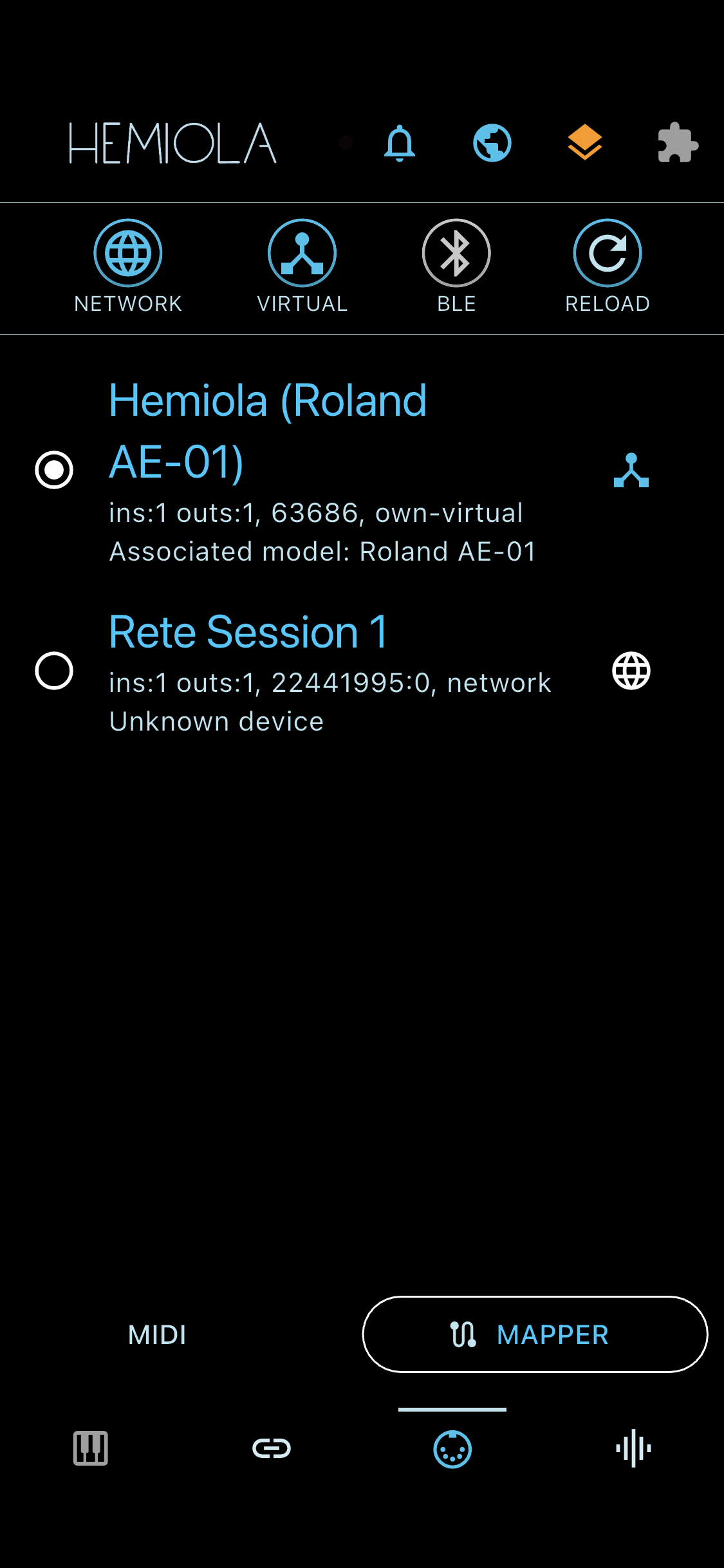
The MIDI Device Manager lists all available MIDI devices. Tap a device to connect or disconnect it.
- Bluetooth devices: BT scanning is off by default; tap the BT icon and grant permission to scan
- Network switch (iOS/macOS): enables Network MIDI sessions
- Virtual switch: enables a virtual MIDI port (availability depends on platform)
- Reload button: fully shuts down the MIDI subsystem and restarts it — useful if devices are not detected or the MIDI stack appears stuck. Last-known devices are reconnected automatically.
Use the bottom bar buttons to access MIDI Mapper. Some general MIDI settings are also available in the main Settings window.
General MIDI Prefs
- SF Channel: MIDI channel for the SoundFont synth (default: OMNI)
- Analog Channel: MIDI channel for the Analog synth (default: OMNI)
- MIDI Thru: forward incoming MIDI messages to connected output devices
- Pitch Bend Range: sensitivity of incoming pitch bend in semitones
MIDI Mapper
Lets you control Hemiola parameters via MIDI (UI mode) or forward and transform MIDI messages (Custom mode).
- Tap an entry to activate or deactivate it
- Filter the list by message type; "activate all visible" applies to the filtered set
- Add custom mapping: define name, in/out channel, command, and data; tap the settings icon to edit or delete
Note
Long-tap the Add button to reset all mappings to defaults and delete all custom entries.
MIDI Console
Displays a real-time list of recently received MIDI messages. Useful for testing and diagnosing MIDI connections, and for identifying the right channel/command values when creating MIDI Mapper entries.
- Access: long-tap the MIDI icon in the bottom tab bar, or long-tap the MIDI icon inside the MIDI Device Manager screen
- Tap the Clear button at the bottom to erase the current message list