
Introduction
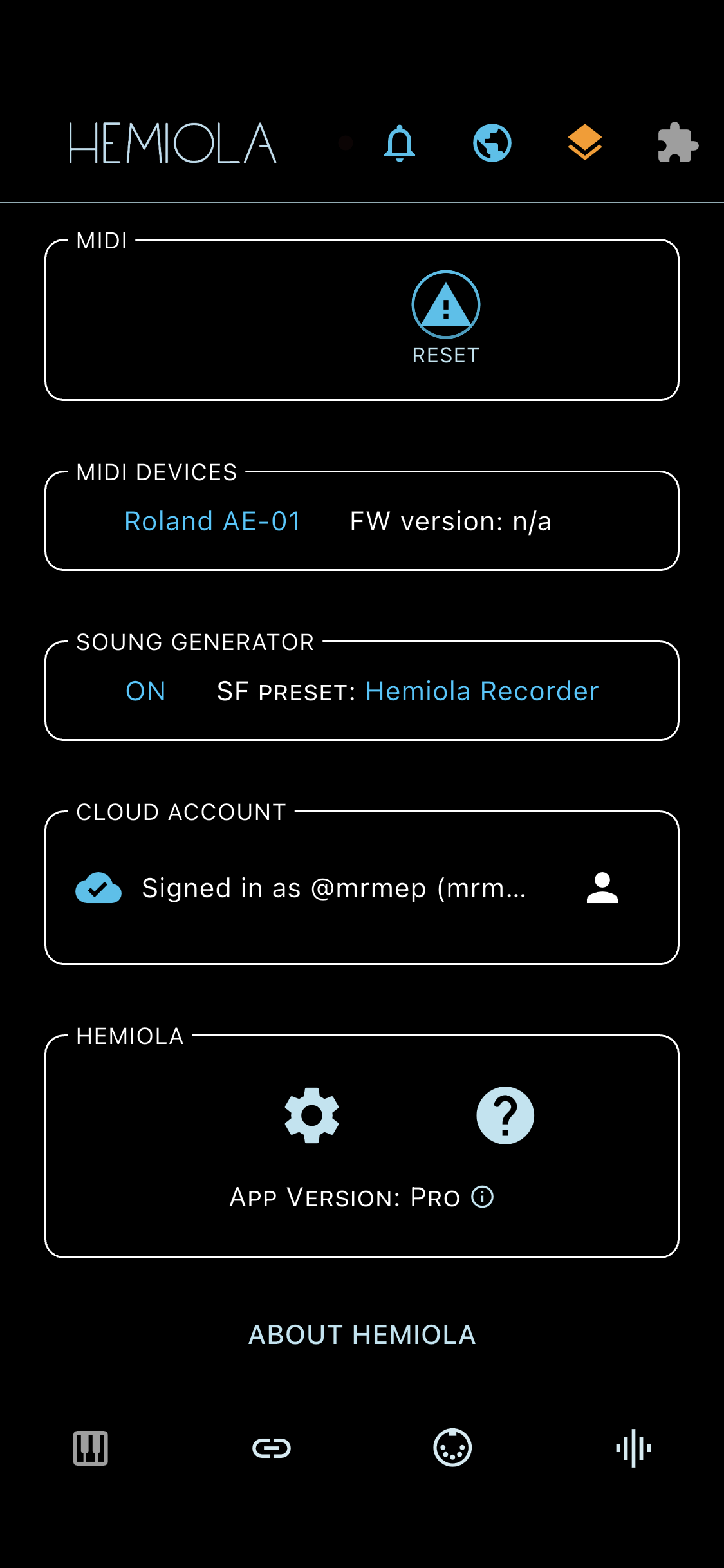
Hemiola is a multi-platform music app that lets you: play a piano keyboard, connect MIDI instruments, upload your own SoundFont files, create analog synth sounds, add audio effects, configure external MIDI devices, and use it as a MIDI router — with the same experience across all platforms.
Hemiola is free on mobile. The Free version allows up to 3 presets per section. A one-time Pro upgrade (iOS/Android) removes that limit. Cloud subscriptions unlock additional features and supersede the one-time purchase for the duration of the subscription — see the Cloud Account section for details.
- On first startup, a short tutorial is shown. You can skip it, and after skipping it twice an additional Skip Forever action appears to mark the tutorial as completed permanently.
- In Preferences, when Debug mode is enabled, a Reset Tutorial action is available to clear tutorial progress for QA/testing.
Presets & Scenes
A preset icon (library/music) is always visible in the top bar. It is grey and disabled in sections that have no preset support. It turns accent-coloured when presets are available and the current state is saved; it turns orange when there are unsaved changes (dirty state).
- Preset dialog (clean): tap a preset to apply it immediately. Tap the edit icon to rename, or the delete icon to remove a user preset. The default "—" preset cannot be modified or deleted.
- Preset dialog (dirty): tap a user preset to overwrite it with current values, or use the Add New button to save as a new named preset. A Discard option resets to the last saved state.
- Sections with preset support: Piano Keyboard (scale, scroll position, pressure, haptic), Sound Generator tabs (Soundfont, Analog, FX sections), Configuration Tool device pages, and MIDI Mapper (full mapping list with active/inactive state).
The SCENE preset (in the MAIN tab of the Sound Generator) saves ALL parameters from every section at once and is independent of individual section presets.
App Bar
The app bar at the top contains persistent actions available on every screen.
- Hemiola logo → Home screen; also acts as a Back button when inside a sub-screen. On smartphones, while the Piano is open, tapping the logo returns to the previously active tab instead of the Home screen
- Theater masks icon (Scenes) → save and restore a full snapshot of all Sound Generator and MIDI settings in one step
- Preset icon (library/music) → always visible; grey when the current section has no preset support, accent-coloured when clean, orange when there are unsaved changes
- Bell icon (Push Notifications) → shown for both signed-in users and guests; displays a red badge with the count of unread notifications. Tap to open the notifications panel directly below the icon. See the Push Notifications section for details.
- Battery icon → shown only while Config Tool is the active tab, for compatible devices
Bottom Tab Bar
The bottom bar gives quick access to the four main sections. The active tab is highlighted by an accent underline at the top of the icon. While the Piano is open on smartphones, the bar is shown only when there is enough space; on compact layouts it is hidden to avoid covering the keyboard.
- Piano icon → Piano Keyboard
- Link icon (Config Tool) → accent-coloured when a supported device is connected; long-tap to activate Developer/Sandbox mode
- MIDI icon → MIDI Device Manager; accent when a device is connected; long-tap opens the MIDI Console directly
- Equalizer icon (Sound Generator) → accent when the generator is playing; long-tap or shake the device to toggle on/off
Knobs
- Drag up or right to increase the value; drag down or left to decrease
- Tap the arc to jump directly to that position
- Double-tap the knob to reset to the default value
- Long-press the value label to open a modal editor for exact numeric entry. The field is focused immediately, the knob name is shown, and the entered value is validated against the visible range before Apply or Enter/Done is accepted.
- Long-press the knob body (hold without moving) to enter Fine mode: the drag sensitivity is reduced 10×, allowing very precise adjustments. A red border appears on the knob body while Fine mode is active. Fine mode deactivates automatically when you release.
App Updates
- Store Updates (App Store / Play Store): new features and bug fixes
- In-app Updates: embedded SoundFont files, new configuration tool device pages, and Help system updates
- When an in-app update installs a new supported device plugin, the device catalog is refreshed immediately without restarting the app.
An alert is shown at startup when updates are available. You can also check manually: Home → About Hemiola → "Check for updates".
- The check-for-updates dialog shows a progress bar while update files are being checked and downloaded.